The Flexible Guest List Import uses AI to allow you to upload your existing spreadsheets without needing to reformat them into any specific template. This tool is available across desktop, mobile web and the Zola iOS app using the exact same steps!
Below you will find the steps based on the iOS app visual (you can follow these same exact steps on desktop, mobile and web as well):
STEP ONE
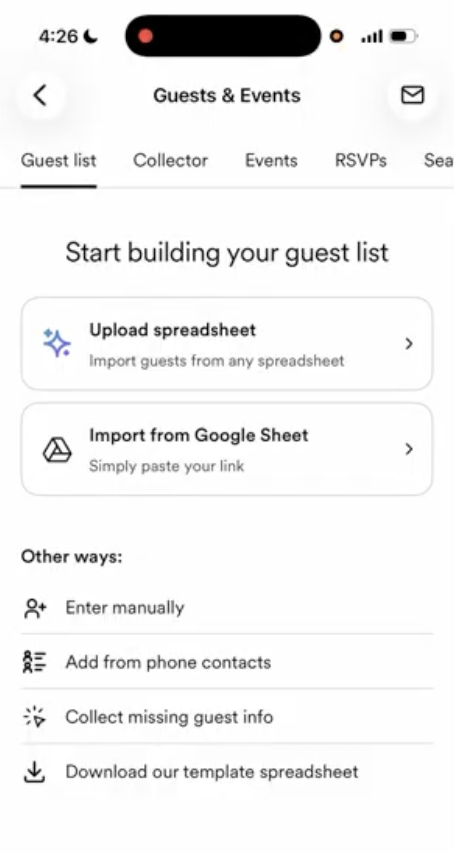
Navigate to Guest List on iOS App.
STEP TWO
Select one of the below options: Upload Spreadsheet or Import from Google Sheet
STEP THREE
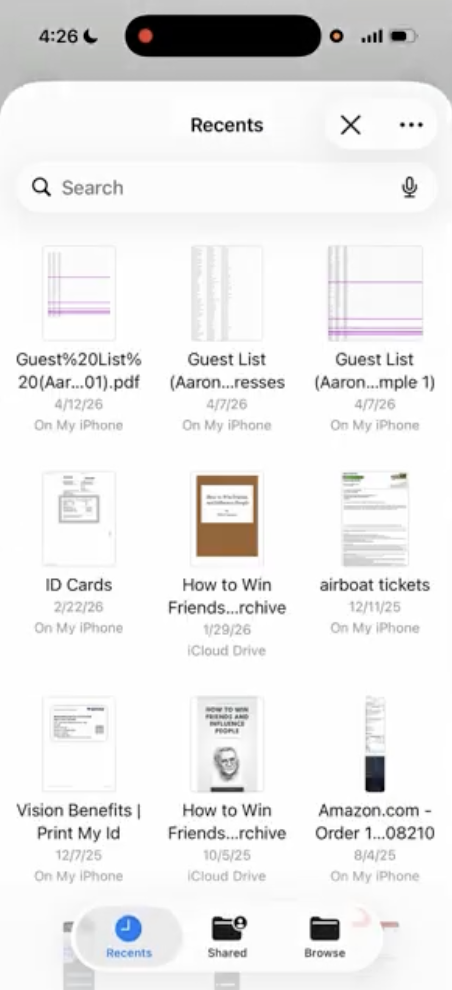
If you selects Upload a Spreadsheet, it will open the Files app on iPhone. Then, select a file to upload.
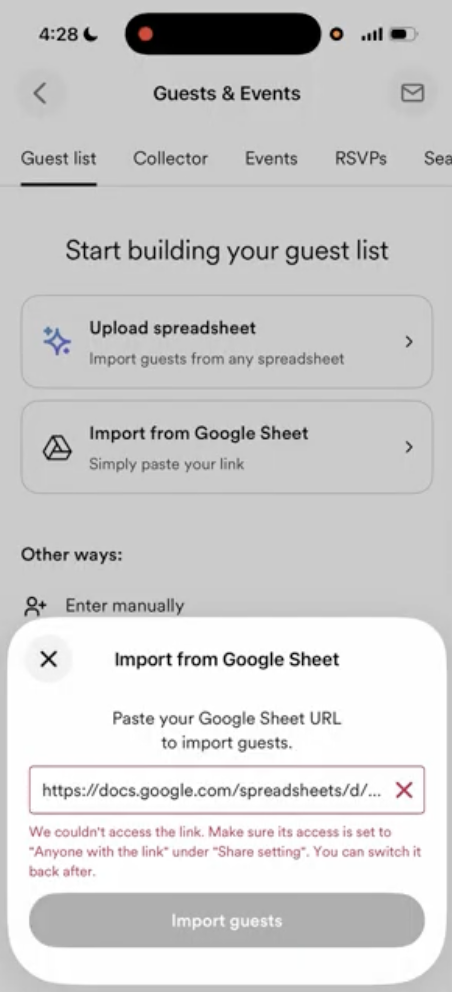
If you select Import from Google Sheet, they will be prompted to paste a link to a public Google Sheet.
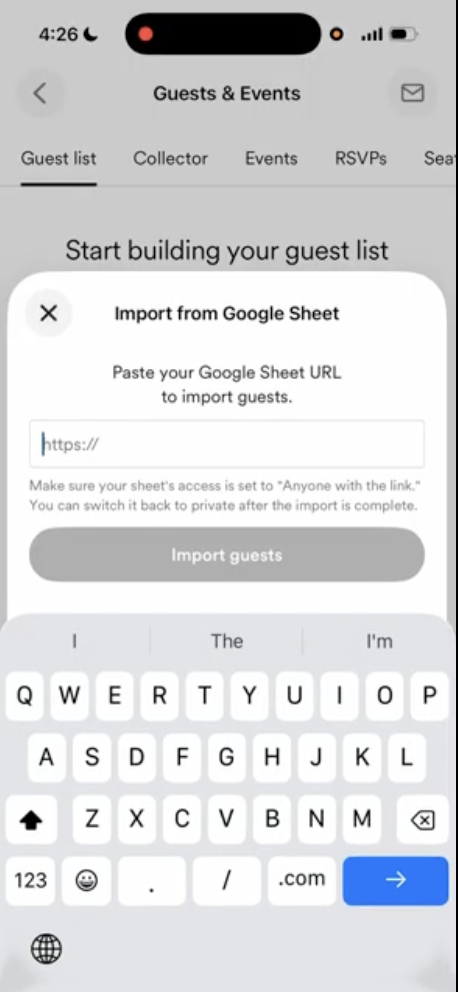
NOTE: Your Google Sheet must be public in order to be imported to Zola. You can adjust this by going to "Manage Access" in Google Sheets and change General Access to "Anyone with the link."
If the sheet is private, the app will display: "We can't access the link. Make sure its access is set to 'Anyone with the link' under share settings."
STEP FOUR
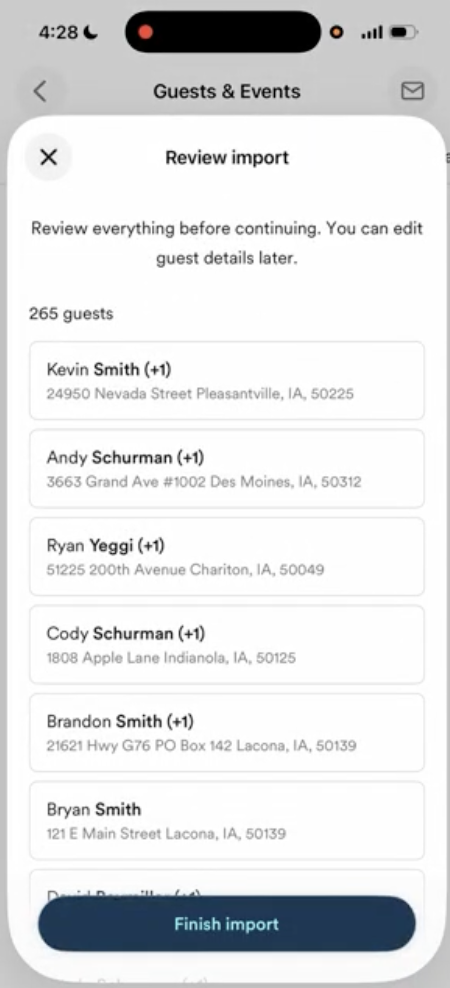
The guest list will populate for you to review before importing, and then click Finish Import to finish.
NOTE: The guest information cannot be edited in this state. If anything looks inaccurate, it can be edited once the guest list is imported, or you can edit your spreadsheet and try again.