With our new design flexibilities, adding a photo to your invitation design is easier than ever!
Simply follow these steps:
-
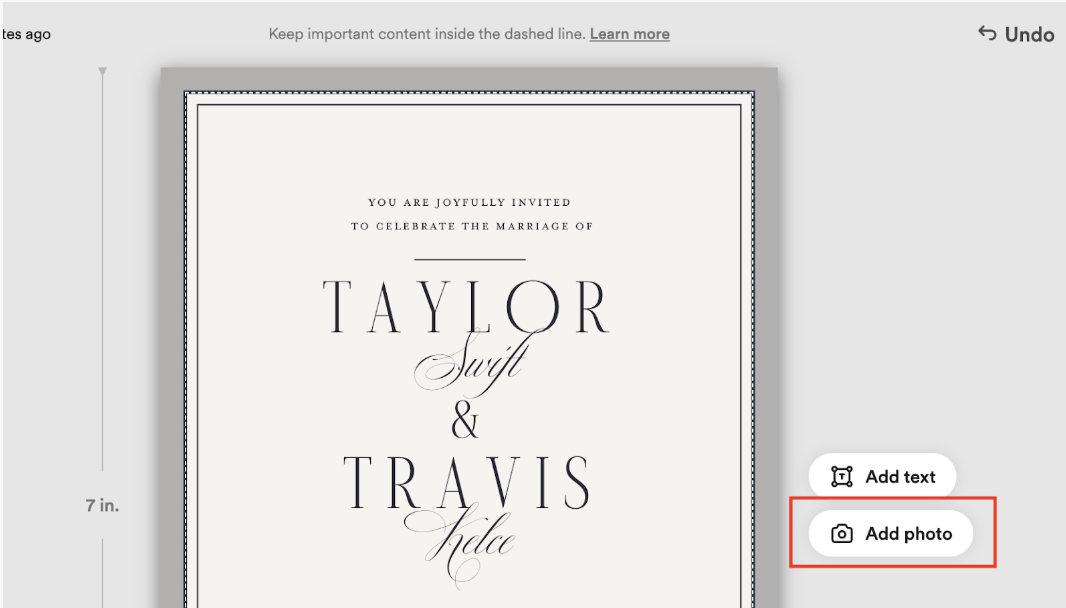
Click the Add a photo button next to your design.
-
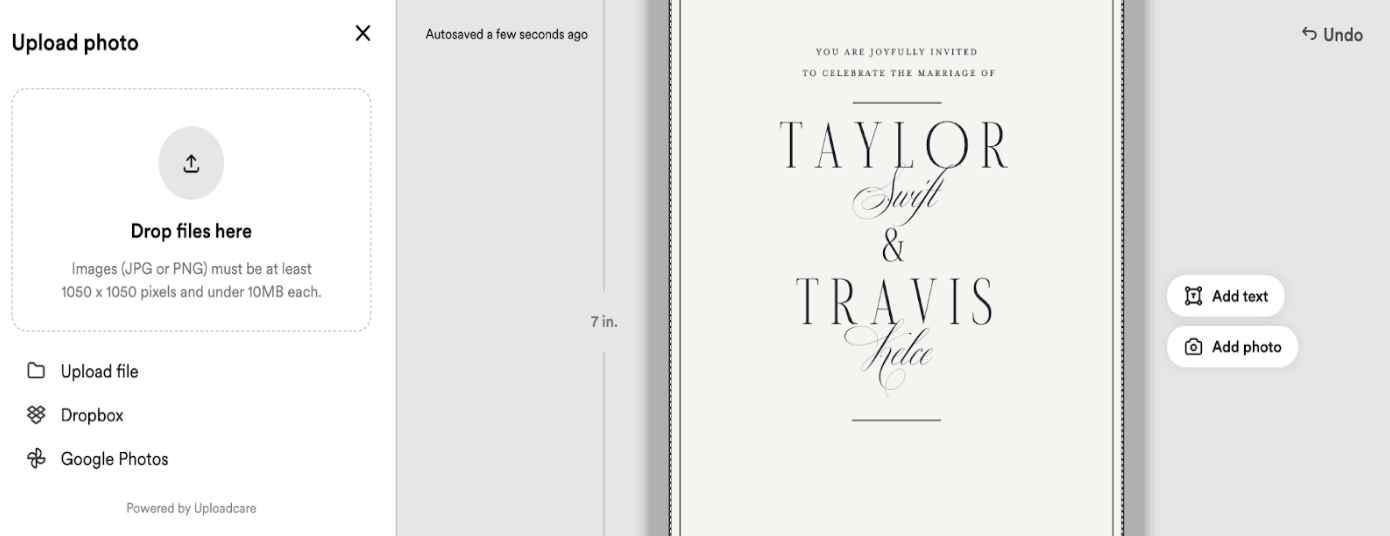
This will bring up an image uploader where you can choose to manually upload a photo or drag and drop an image file. You can upload images directly from your device, or upload them via Google Photos or Dropbox.
-
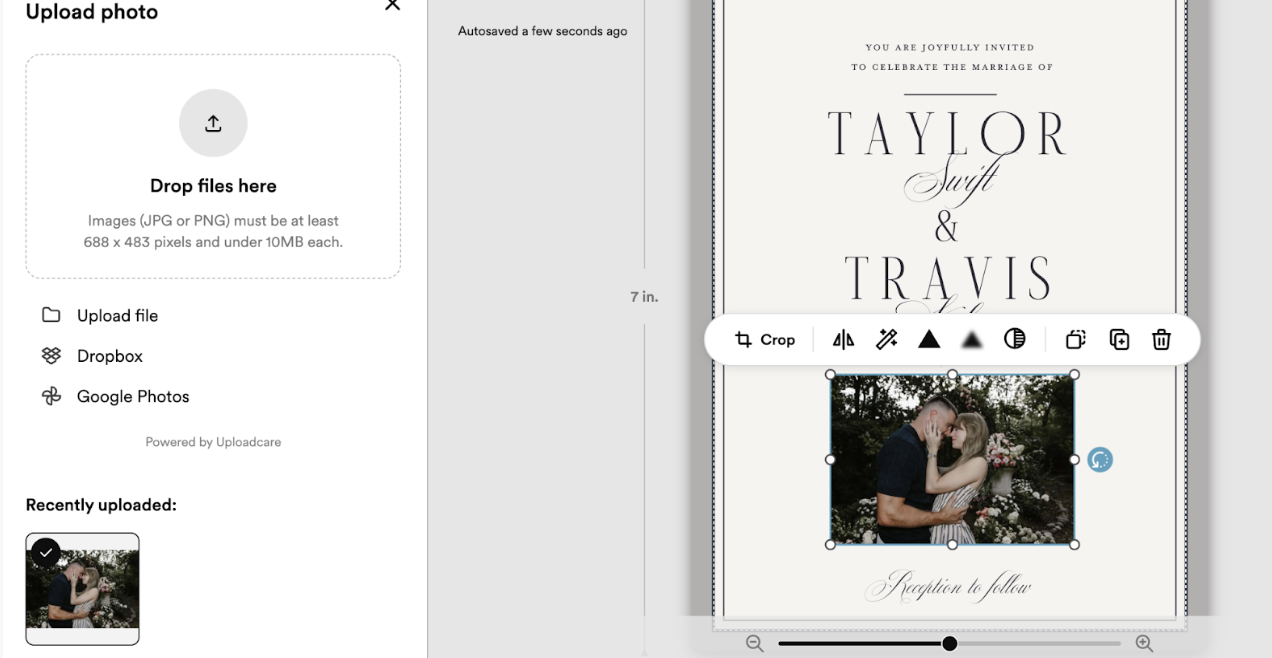
Once you upload your photo, it will appear on your design. You can drag it to reposition it, as well as increase or decrease the size. You can also edit the photo’s appearance using any of the photo editing tools seen in the image below (crop, mirror, enhance, sharpen, blur, or contrast), or layer the image with text or another image!
Still need help? Feel free to reach out to support@zola.com - our team is standing by and ready to assist!